Shopify Product Variant Schema: A Merchant Checklist
Review Shopify product variant structured data with a practical checklist for ProductGroup, variant identity, URLs, offers, price, and availability.
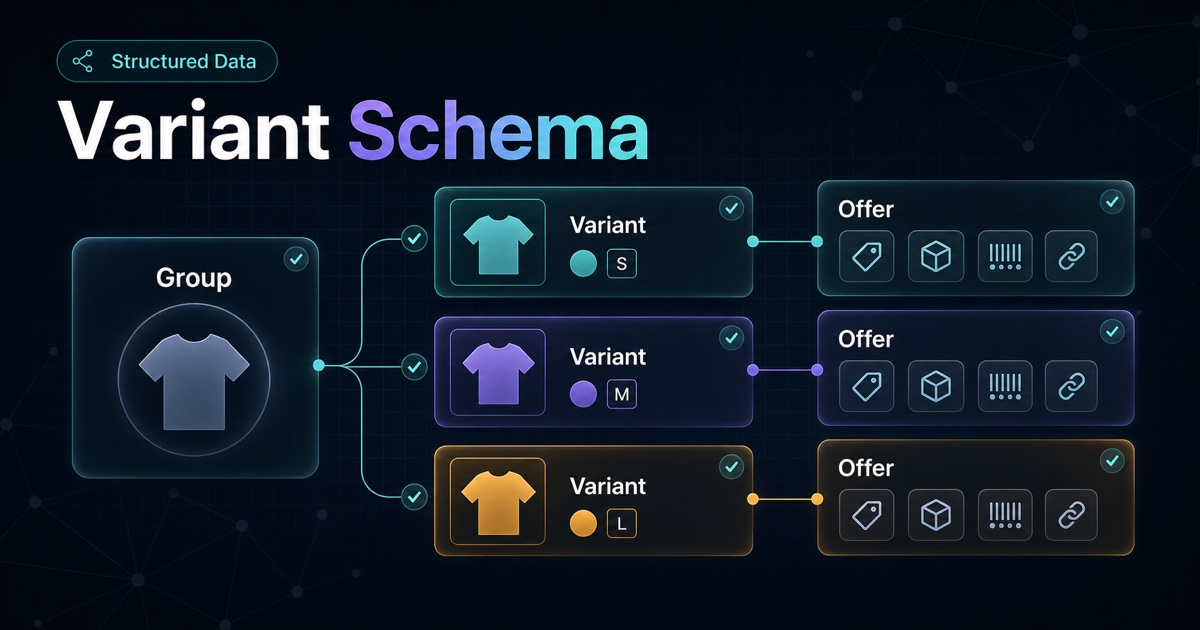
A Shopify product with sizes, colors, materials, or other options is not always one simple offer. Each purchasable variant can have its own identifier, image, price, availability, and URL state.
Variant structured data should preserve those differences. It should help machines understand that the variants belong to one product family without pretending they are identical.
For Google Search, the current model uses ProductGroup for the parent family and Product for the individual variants. Google documents variesBy, hasVariant, isVariantOf, and a shared product-group identifier as the relationships that connect them. See Google's current product variant structured data documentation.
This guide focuses on the review process for Shopify merchants and agencies. It is not a copy-paste theme snippet: the correct implementation depends on how the theme renders variants, which apps also output JSON-LD, and whether variants use one page or separate pages.
If the store has not established a reliable base Product object yet, begin with the broader Shopify Product schema checklist. If several apps or theme snippets already emit markup, use the structured data mistakes review to map conflicts before adding variant relationships.
The Short Version
Check these items first:
- Check 1 — Every variant has a stable unique identifier.
- Check 2 — Every product family has a stable group identifier.
- Check 3 — The markup states which properties vary, such as color or size.
- Check 4 — Each variant's URL opens with that variant selected.
- Check 5 — Price, currency, availability, image, and identifier match the selected variant.
- Check 6 — Single-page and multi-page variant setups use the correct URL and canonical model.
- Check 7 — The structured data matches visible content and purchase behavior.
- Check 8 — Only one authoritative implementation owns the product markup.
Valid syntax is not enough. A page can pass a test while describing the wrong variant.
Product, ProductGroup, And Offer
Use a three-level mental model.
ProductGroup
  -> Product variant
    -> Offer for that variant
For a jacket sold in multiple colors and sizes:
ProductGrouprepresents the trail jacket family.- Each
Productrepresents a specific color and size combination. - Each
Offerdescribes the price, currency, availability, and purchase URL for that variant.
Shared facts can live at the group level when they truly apply to every variant. Variant-specific facts should stay with the variant.
| Fact | Typical location | Review question |
|---|---|---|
| Family name | ProductGroup | Does it describe the shared product? |
| Brand | ProductGroup when shared | Is it identical across variants? |
| Variant dimensions | Product | Which properties distinguish this purchasable item? |
| SKU or GTIN | Product | Is the identifier unique to this variant? |
| Image | Product | Does it show the selected color/material? |
| Price and currency | Offer | Does it match the selected variant? |
| Availability | Offer | Can this variant be purchased now? |
| Purchase URL | Offer | Does the URL preselect the right variant? |
Do not move a fact to the parent merely to reduce markup. It belongs at the highest level where it remains true for every child.
Start With The Visible Variant Experience
Before reviewing JSON-LD, test the storefront.
For each important variant, confirm that a direct URL can reproduce the correct state:
- The intended variant is selected.
- The correct image or media is shown.
- The displayed price is correct.
- Availability matches inventory policy.
- The add-to-cart action adds that variant.
- The variant name or options are understandable to a shopper.
Google's technical guidance says the site must be able to preselect each variant through a distinct URL and show the correct image, price, availability, and purchase state. If a URL points to the parent product but always opens the default variant, the structured data is describing a state the page does not reproduce.
This is the most important check because it connects the machine-readable object to a real shopper experience.
Give Every Variant A Stable Identity
Google requires a unique identifier for each variant in its structured data, using properties such as sku or gtin. It also requires a unique identifier for the product group through productGroupID on ProductGroup or inProductGroupWithID on the variants.
Use identifiers as contracts:
- One SKU should refer to one sellable variant.
- Do not reuse a SKU across different colors or sizes.
- Do not invent a GTIN when the manufacturer has not assigned one.
- Keep the parent group ID stable when copy or merchandising labels change.
- If both parent and variant markup include the group identifier, the values must match.
Weak identity:
Parent: Trail Jacket
Variant: Navy / Medium
Variant: Black / Large
Clearer identity:
Product group ID: TRAIL-JACKET-01
Variant SKU: TRAIL-JACKET-01-NAVY-M
Variant SKU: TRAIL-JACKET-01-NAVY-L
Variant SKU: TRAIL-JACKET-01-BLACK-M
The human-readable option labels can change. The identifiers should continue to point to the same commercial objects.
Declare What Varies
The variesBy property tells Google which dimensions separate variants. Google's currently supported values include full Schema.org URLs for:
- Color.
- Size.
- Suggested age.
- Suggested gender.
- Material.
- Pattern.
Only declare a dimension that is represented consistently in the variant data and visible experience.
For a separate example, consider a backpack sold in different colors and capacities. If capacity does not map cleanly to one of the supported variesBy properties, do not force it into size without reviewing whether that accurately represents the product. Structured data vocabulary should describe the product, not reshape the catalog to fit a convenient field.
Connect Variants To The Group
Google supports two relationship styles:
- Nest variant
Productobjects underProductGroup.hasVariant. - Let each variant
Productpoint back withisVariantOf.
A simplified, illustrative structure looks like this:
{
  "@context": "https://schema.org",
  "@type": "ProductGroup",
  "@id": "#trail-jacket",
  "name": "Trail Jacket",
  "productGroupID": "TRAIL-JACKET-01",
  "variesBy": [
    "https://schema.org/color",
    "https://schema.org/size"
  ],
  "hasVariant": [
    {
      "@type": "Product",
      "name": "Trail Jacket - Navy - Medium",
      "sku": "TRAIL-JACKET-01-NAVY-M",
      "color": "Navy",
      "size": "Medium",
      "image": "https://example.com/trail-jacket-navy-medium.jpg",
      "offers": {
        "@type": "Offer",
        "url": "https://example.com/products/trail-jacket?variant=1234567890",
        "priceCurrency": "USD",
        "price": "129.00",
        "availability": "https://schema.org/InStock"
      }
    }
  ]
}
This example is deliberately incomplete. Google requires the applicable Product properties for product snippets or merchant listings, and the right fields depend on the page and shopping experience. Use it to understand the relationships, then implement against the current Google Product documentation and variant guidance.
For Shopify themes, a standard variant deep link uses ?variant=[variant-id]. Shopify's product variant theme guidance also says the linked state should update product media, price, and the variant selector. The numeric ID above is only an illustrative placeholder.
Keep Offers Variant-Specific
Each variant can differ commercially. Review these values per variant:
url.price.priceCurrency.availability.- Condition when relevant.
- Shipping and return information when implemented at offer level.
Common problems include:
- The markup always uses the cheapest variant price.
- Every variant is marked in stock because the parent product is active.
- The offer URL loads the default variant instead of the described one.
- A sale price appears visually but the markup retains the old price.
- One market's currency is reused on another market's page.
- A variant image is replaced while structured data keeps an old URL.
Review offer accuracy after inventory apps, subscription apps, bundle logic, theme changes, market configuration, and product-option migrations.
Single-Page And Multi-Page Variants Need Different QA
Google documents two variant page designs.
Single-page variants
All variants are selected on one product page, often with a URL parameter or another distinct URL state.
Google's guidance calls for one distinct canonical URL for the overall product group, typically the base product URL without a variant preselected. Each variant still needs a URL that can open its correct state.
Review:
- One parent canonical policy.
- Direct variant URLs that select the intended option.
- Markup that represents the variants available on the page.
- Price and availability updates that remain accurate in initial HTML or reliably rendered output.
Multi-page variants
Variants live on separate, equally important pages.
Google says each page should contain full, self-contained markup for the entities defined on that page. Do not make one page's variant data depend on structured data that only exists on another page.
Review:
- Self-contained markup on every variant page.
- Each page's visible content and offer.
- References to related variant URLs.
- Canonical decisions based on whether the pages are truly distinct, not simply because they share a parent product.
Do not copy a single-page pattern into a multi-page catalog without reconsidering URL and canonical behavior.
Check Initial HTML And JavaScript Behavior
Google recommends putting Product structured data in the initial HTML when optimizing for shopping results. It also warns that dynamically generated product markup can make Shopping crawls less frequent or reliable, especially for fast-changing price and availability.
For a Shopify theme, inspect both:
- View 1 — The initial page source.
- View 2 — The rendered DOM after selecting another variant.
Ask:
- Is there valid product markup in the initial HTML?
- Does the initial markup match the default or URL-selected variant?
- Does variant selection update only the visible page, only JSON-LD, both, or neither?
- Could a crawler receive stale price or availability?
Do not add a second JSON-LD block merely because the first one is hard to change. Identify the authoritative source first.
Find Duplicate Markup Before Adding More
Shopify stores may receive structured data from several places:
- The theme.
- An SEO app.
- A reviews app.
- A feed or shopping app.
- Custom Liquid or JavaScript.
Multiple blocks are not automatically wrong, but overlapping blocks that disagree are hard to trust and maintain.
Build a source map:
| Source | Emits | Owner | Keep, change, or remove |
|---|---|---|---|
| Theme | Product and Offer | Theme developer | Review |
| Reviews app | Aggregate rating | Ecommerce team | Review |
| SEO app | Product JSON-LD | SEO owner | Review for duplication |
| Custom snippet | Variant relationships | Developer | Review |
Choose one authoritative owner for each fact. Then remove or reconfigure conflicting output through supported theme or app controls.
Structured Data Is Not The Merchant Feed
Product structured data describes the product information on a page. A Merchant Center feed is a separate submission surface. Google's Product structured data overview explains that merchants can provide product data through on-page structured data, Merchant Center feeds, or both.
The two surfaces should agree on identifiers, variant relationships, price, currency, availability, and destination URLs. Passing a page-level structured data test does not prove that a feed is current, and a healthy feed does not repair contradictory page markup.
This article stays focused on page-level variant schema. The planned schema-versus-feed guide, aa-blog-021, will cover source ownership and mismatch diagnosis in detail.
Validation Is A Workflow, Not One Test
Google recommends a staged process:
- Step 1 — Add the required properties.
- Step 2 — Validate with the Rich Results Test.
- Step 3 — Fix critical errors and review non-critical warnings.
- Step 4 — Deploy to a small set of pages.
- Step 5 — Use Search Console URL Inspection to see the fetched page.
- Step 6 — Submit or refresh the sitemap when appropriate.
- Step 7 — Monitor after Google recrawls the pages.
Add Shopify-specific checks around that process:
- Test a default variant and at least two non-default variants.
- Test different prices and availability states.
- Compare page source with the rendered page.
- Add the selected variant to cart from its direct URL.
- Re-run checks after theme and app releases.
A Rich Results Test pass proves that Google can parse the tested markup. It does not prove that every variant is correct, that the data remains fresh, or that a search feature will appear.
Common Variant Schema Failures
- One parent SKU reused as the identity for every variant.
productGroupIDchanges between variants.variesBylists properties that the variants do not expose.- Variant URL opens the default option.
- Image, price, or availability belongs to another variant.
- Parent-level availability hides mixed variant inventory.
- A theme and app emit conflicting Product objects.
- JavaScript updates the selector but not the structured data.
- Multi-page variants use incomplete markup.
- Markup is valid but visible product content does not explain the differences.
Merchant Review Checklist
- The parent product family is clearly defined.
- Every variant has a unique SKU or valid GTIN.
- The product group has one stable identifier.
- Group identifiers match wherever repeated.
variesByreflects real variant dimensions.- Every variant URL preselects the correct item.
- Direct URLs show the correct image, price, availability, and cart state.
- Offer data is variant-specific and current.
- Single-page or multi-page behavior is handled intentionally.
- The initial HTML contains accurate Product data where required.
- Theme, app, and custom JSON-LD sources do not conflict.
- Visible content explains meaningful variant differences.
- Rich Results Test and URL Inspection checks are complete.
- No ranking, rich-result, or AI-citation outcome is assumed.
Where AnswerAtlas Fits
AnswerAtlas treats variant schema as one part of catalog readiness. The practical audit is not only whether ProductGroup and Product are present. It is whether identifiers, URLs, visible options, images, prices, availability, and product copy agree.
Structured data can make those relationships more explicit. It cannot repair inconsistent source data or guarantee that Google, an AI answer engine, or another discovery system will use the markup.
Start with one high-value product family that has multiple prices or inventory states. If every direct variant URL and offer passes the checklist, repeat the pattern across the catalog.
Primary References
Next step
See how AI-readable your Shopify catalog is.
AnswerAtlas can scan product pages for AI-readiness signals such as structured data, catalog clarity, and crawler-friendly content.
Open Shopify App Store listing